Select region and language

Dual Pixel 3D
Create a 3D Model from a One Shot
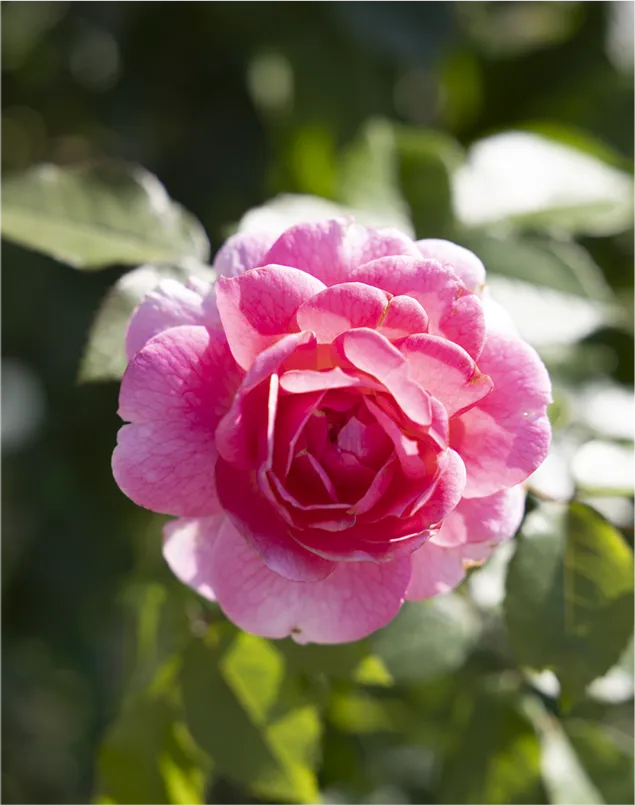
JPEGs with distance data


Generate high-quality 3D models from 2D images of flowers and food.
Interact with photos in 3D for a whole new photographic experience.
Dual Pixel 3D Gallery
3D Photo
Convert the entire image, including the background, into a 3D model. Shape, thickness, depth, and overlapping elements. Explore details that a photo alone cannot fully reveal, from perspectives unique to 3D.
3D Models
Automatically isolate the main subject in an image and generate a highly detailed, textured 3D model.

Expand your visual expression
with 3D models
Use the extracted 3D model in 3D editing software such as Blender or in PowerPoint.
Create 3D videos with motion, viewpoints, and presentation tailored to your vision.
Technology
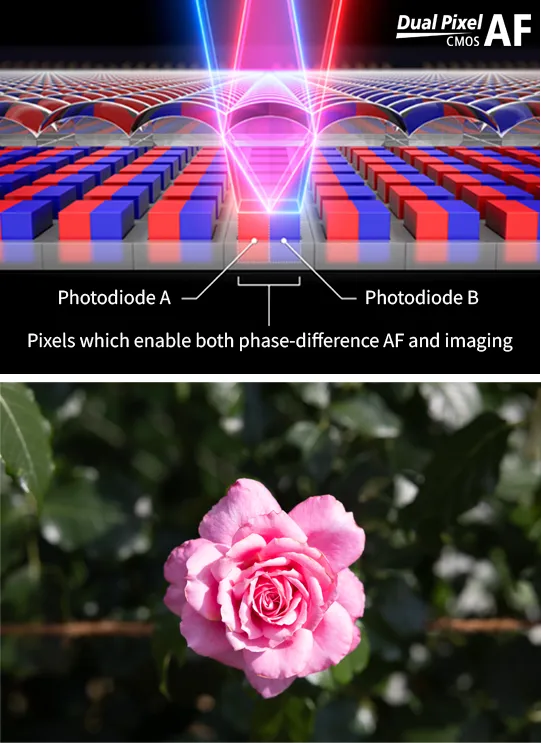
Dual Pixel 3D is a 3D model generation technology based on Canon's proprietary on-sensor phase-detection autofocus technology, Dual Pixel CMOS AF. Using Canon's Dual Pixel 3D Converter software for PCs, you can generate a highly detailed 3D model of the area captured in a one shot from image data* recorded with a compatible camera and lens in Dual Pixel RAW (DPRAW) or JPEGs with distance data.
01. Capture
DPRAW/JPEG Images Captured Using Dual Pixel CMOS AF
Each pixel in the Dual Pixel CMOS sensor performs both imaging and phase-detection AF functions. With two photodiodes in every pixel, the sensor captures phase-difference information across all pixels, enabling it to estimate the distance to the subject.
PC Software
Dual Pixel 3D Converter
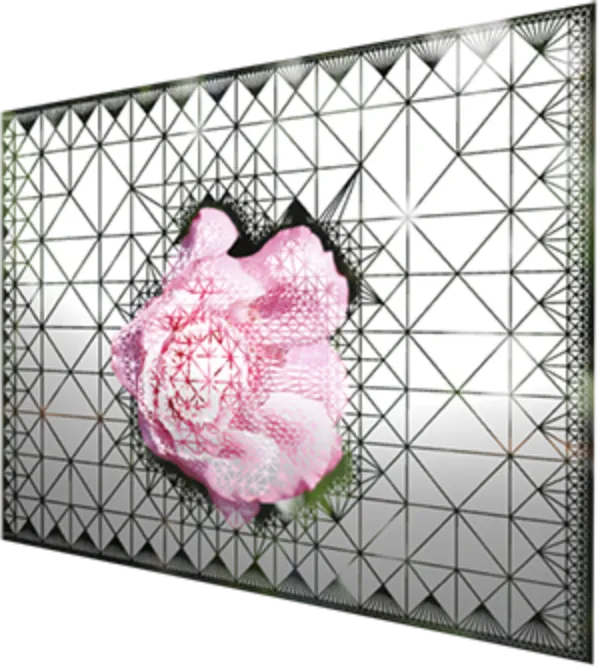
02. Convert depth information into 3D geometry
Based on the phase-detection data obtained from Dual Pixel CMOS AF, it generates a 3D model using an exclusive algorithm. Using the high-quality photographic data for the 3D model surface texture captured with EOS, it can produce realistic 3D models.
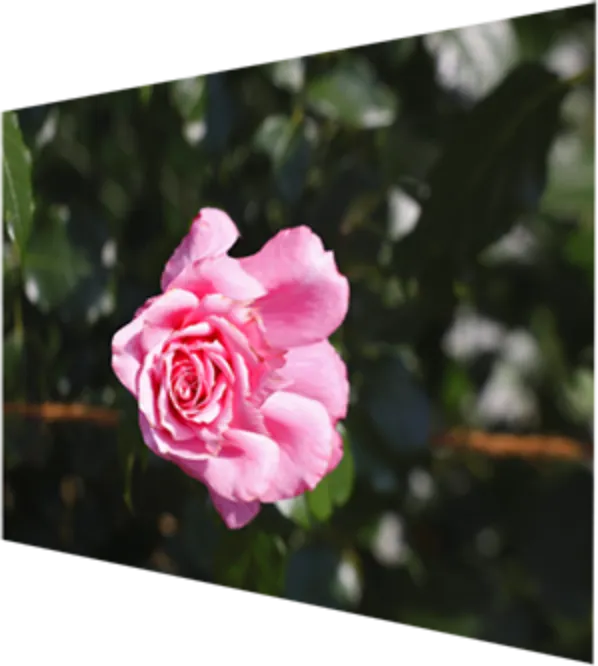
03. Generate a 3D model
OBJ / GLB
The area visible at the time of shooting is generated as a 3D model with high-quality photographic textures. The generated 3D model can be exported in OBJ or GLB format.
Photography Guide
Shooting Tips
for Better 3D Model Results
When generating a 3D model with a convincing sense of depth, it is important to photograph the subject under conditions that make its shape easy to recognize. By following three sets of recommendations—Camera Settings / Shooting Settings, Subject Texture and Shape, and Composition, Angle, and Distance—you can generate more accurate 3D models.
Camera settings
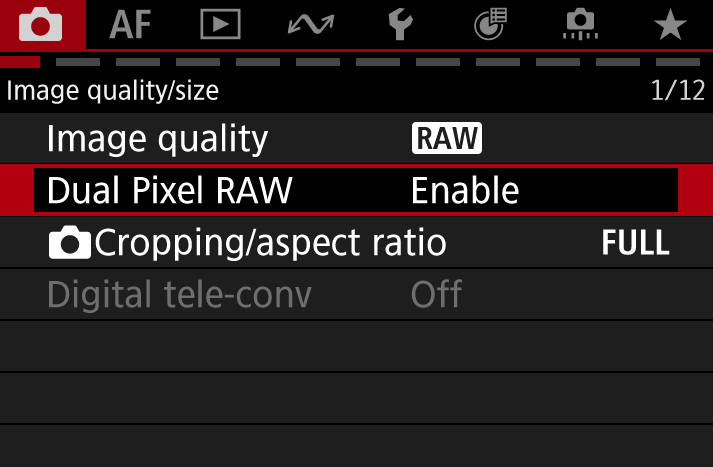
For RAW Images Only
Image Quality: [RAW] *C-RAW is not supported
Dual Pixel RAW: [Enable]
HDR Shooting (HDR PQ): [Off]
Color Space: [sRGB]
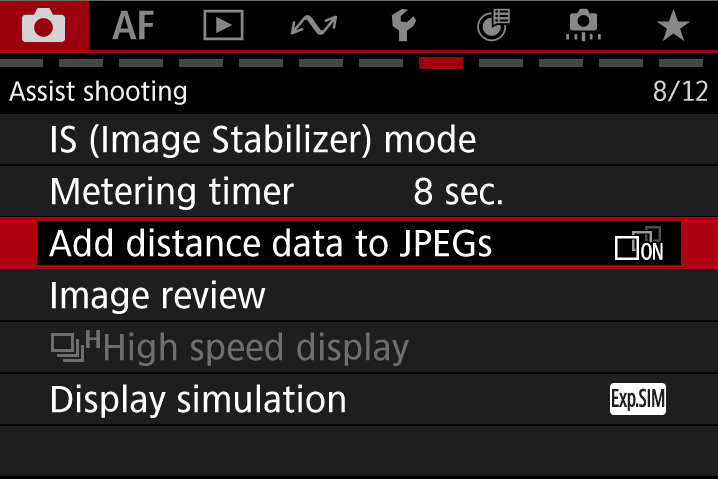
For JPEGs with distance data
Image Quality: [RAW+JPEG]
Add distance data to JPEGs: [ON]
Dual Pixel RAW: [Enable]
HDR Shooting (HDR PQ): [Off]
Color Space: [sRGB]
Shooting settings (Recommended)
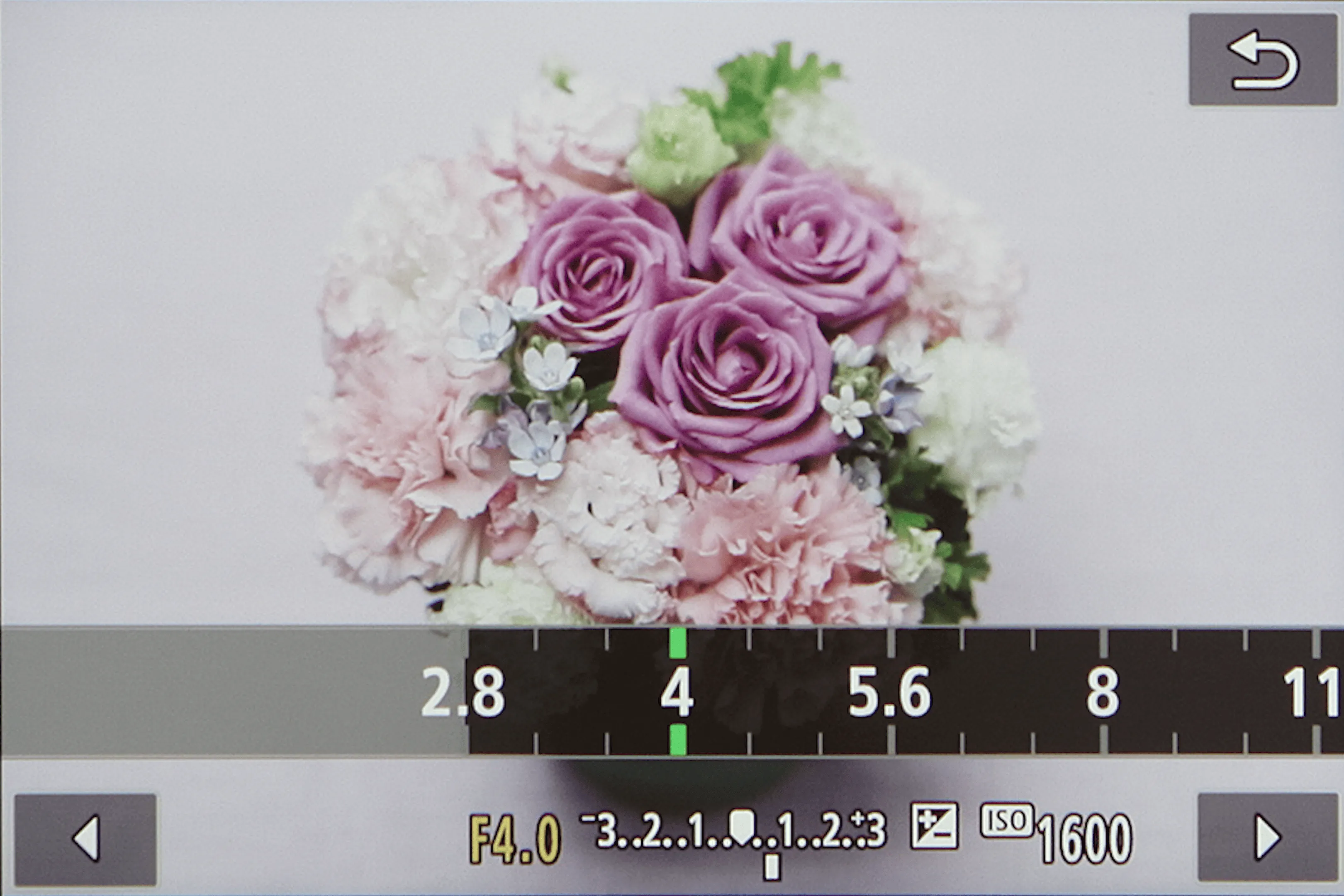
Aperture: f/5.6 or wider
Shoot with an aperture value of f/5.6 or wider, and adjust the depth of field so that the main subject is not excessively blurred.
3D models cannot be generated at aperture values greater than F8.
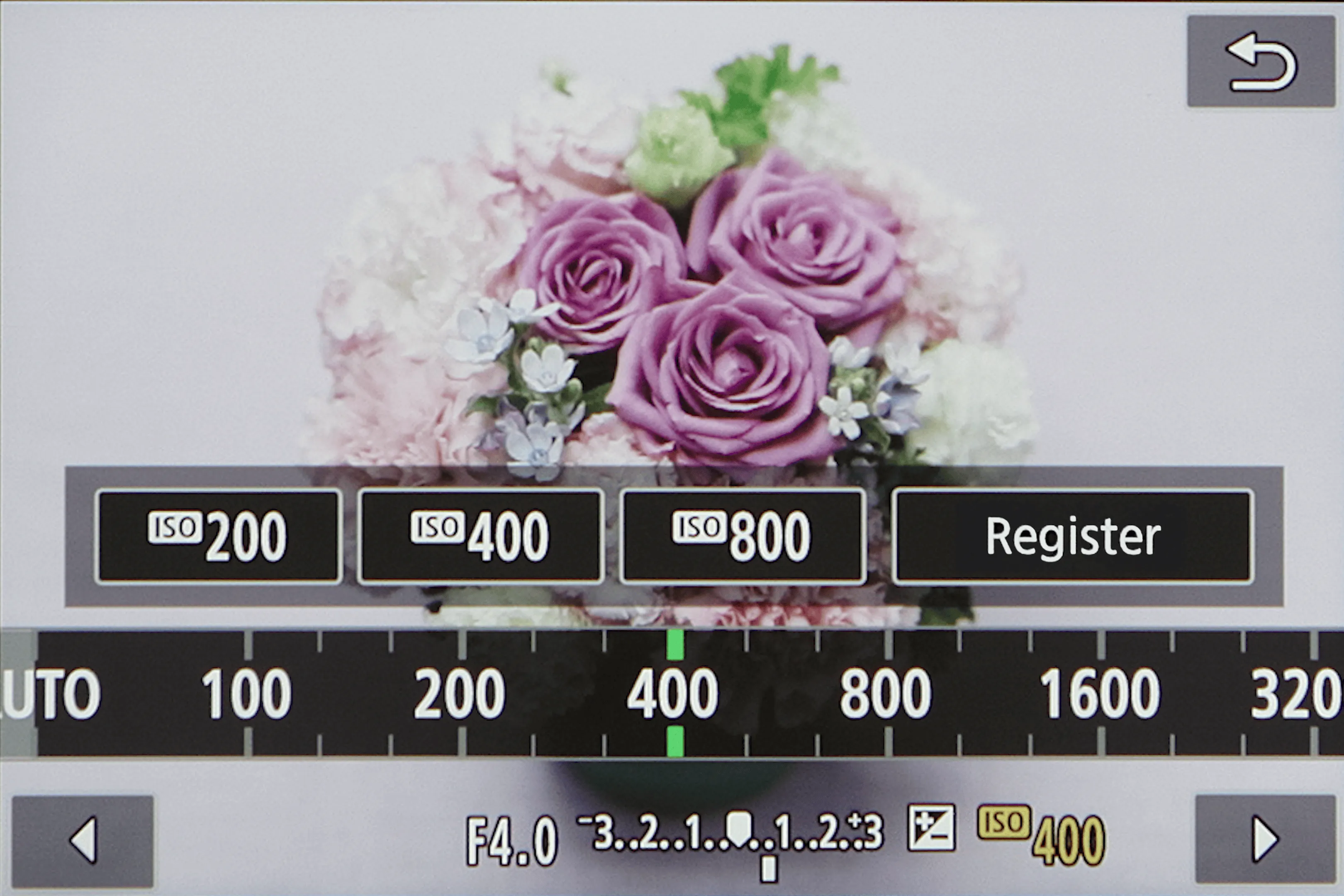
ISO: 1600 or lower
If the subject is dark or the details are unclear, use a flash or other lighting source, and shoot at the lowest possible ISO to minimize noise.
3D models cannot be generated at ISO values greater than 3200.
Subject texture and shape (Recommended)

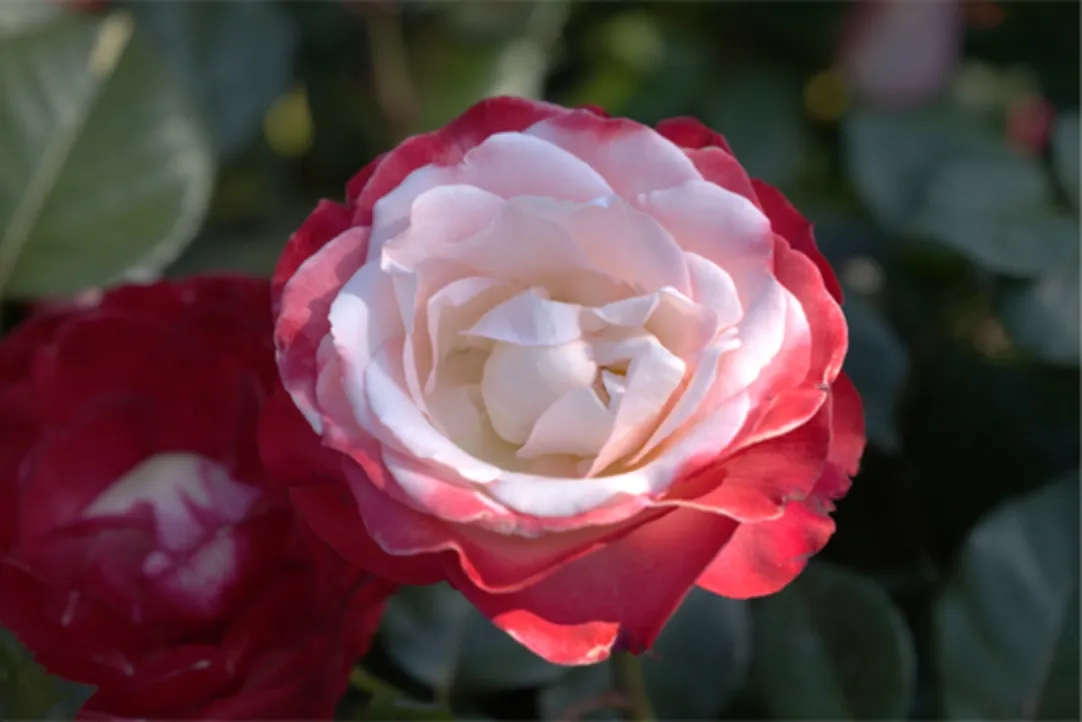
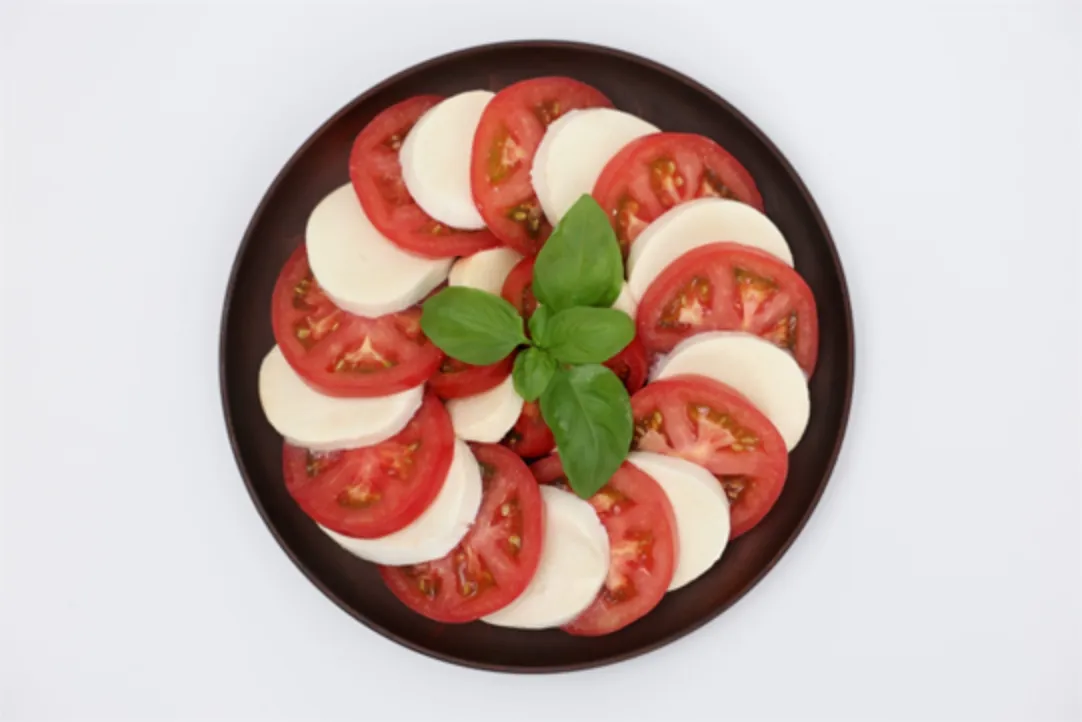
Items with a matte texture
- Ceramic and wooden items
- Food and leaves with little sheen or gloss
- Ornaments photographed to minimize reflections
Objects with thick,
relatively simple shapes
- Shallow plates
- Food items with rounded shapes
- Flowers with round petals, or flowers with narrow petals but rounded outlines
- Houseplants with large leaves
Characteristics of backgrounds that are easy to separate
- A solid-color background
- There is a color contrast between the subject and the background
- No shadows on the subject caused by artificial lighting or natural light
Composition, angle, and distance (Recommended)
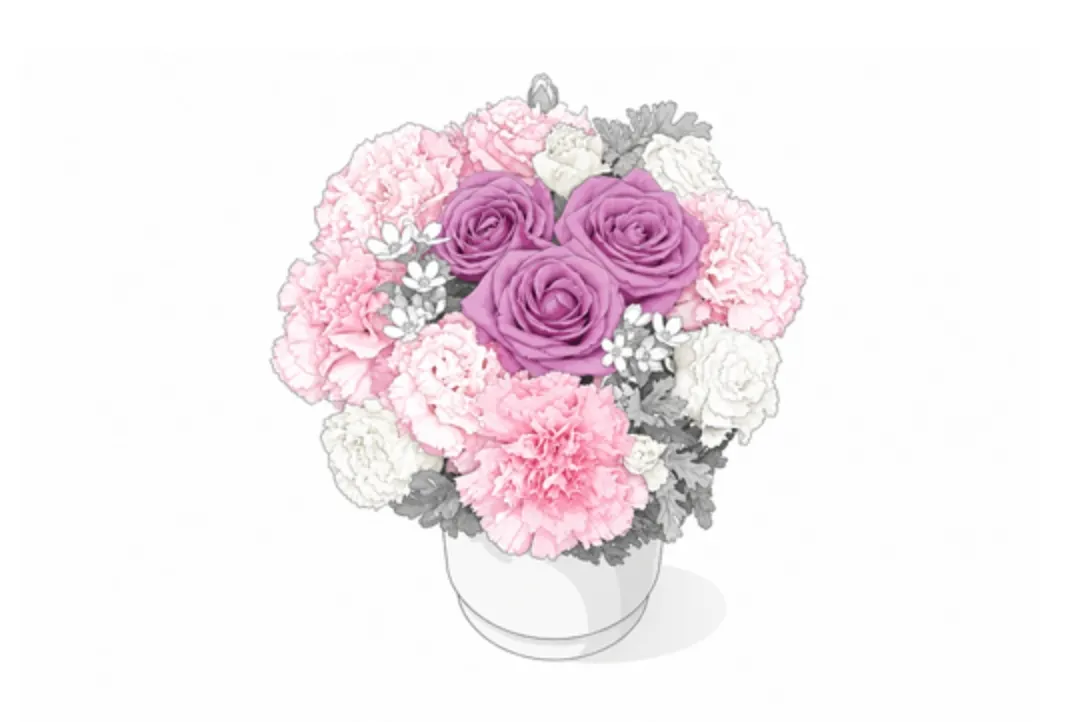
Center the subject
with space around it
Position the subject in the center of the frame and compose the shot so that the main subject is clearly defined.
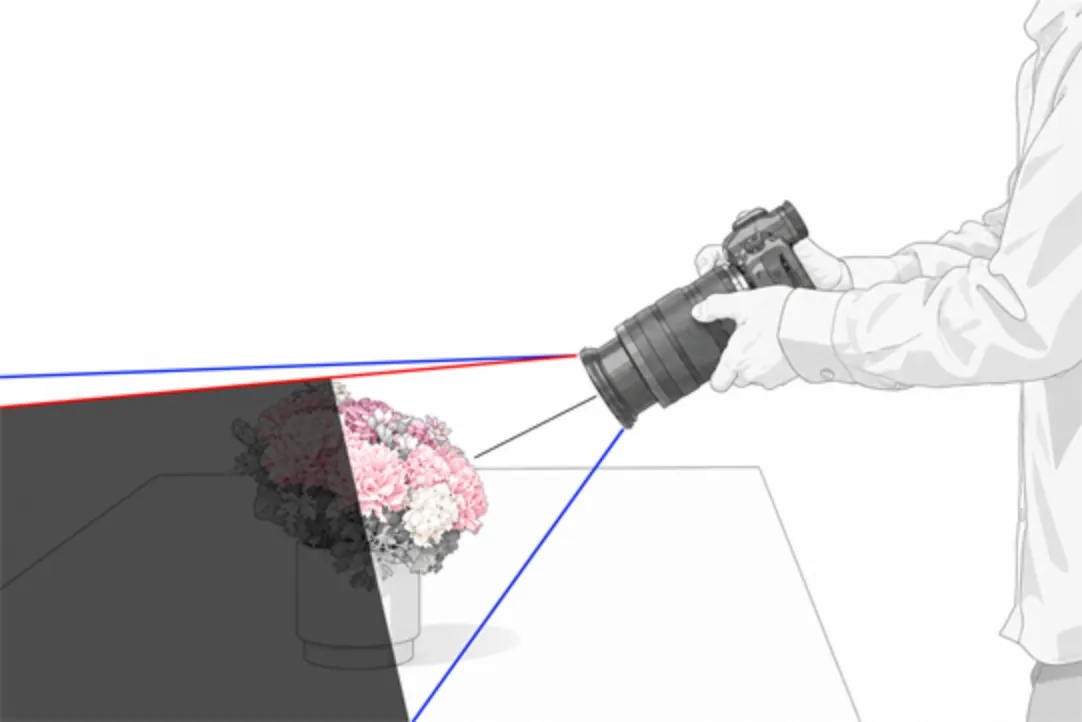
The dark gray areas indicate blind spots.
Shooting from a higher angle and farther away
can help reduce blind spots.
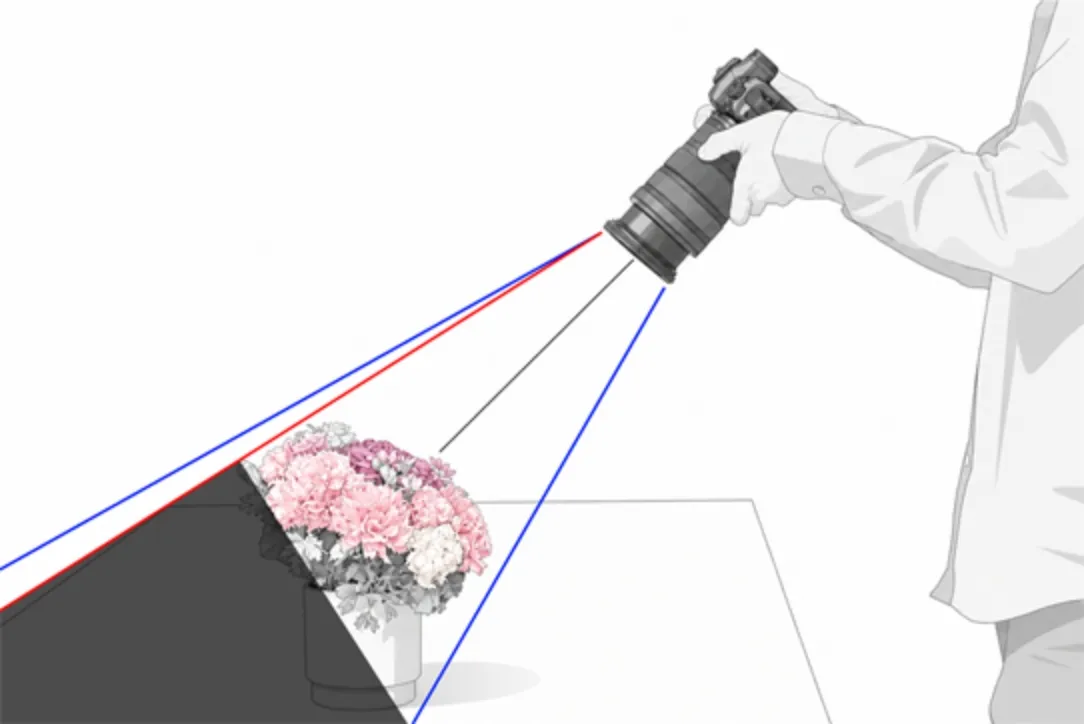
Shoot from a slightly elevated angle
and farther away to reduce blind spots
Blind spots refer to areas that are not visible during shooting. Dual Pixel 3D can only convert the area visible in the frame at the time of shooting into a 3D model. Therefore, areas outside the field of view—which are blind spots—cannot be converted into a 3D model, and the subject may appear stretched or distorted. Reducing blind spots during shooting makes it easier to generate natural-looking 3D models with minimal distortion.
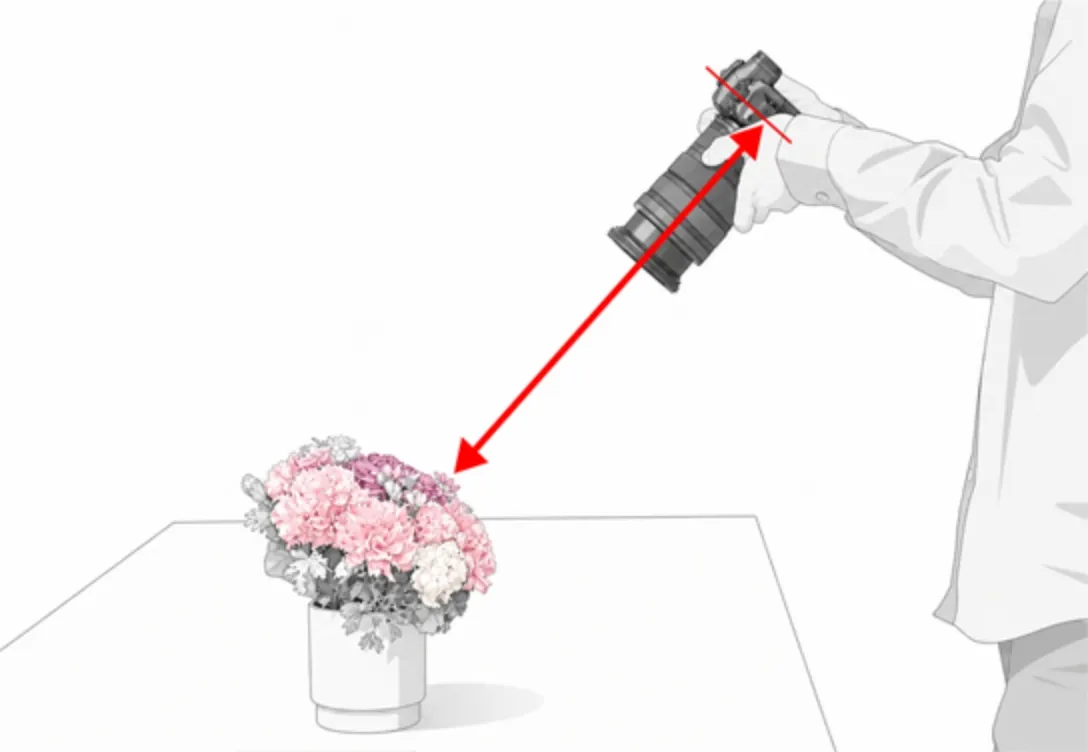
Subject Distance:
5–10 Times the Focal Length
A distance of 5–10 times the focal length is recommended between the camera's sensor plane and the subject. For example, with a 50mm lens, aim for a distance of approximately 25 to 50 cm.
Scenes That Are Difficult
to Model in 3D
Depending on the shooting environment and the shape of the subject, it may be difficult to generate a 3D model accurately.
Here are some examples that can affect 3D model accuracy.
(Parts of the images are enlarged for clarity.)
Significant bokeh
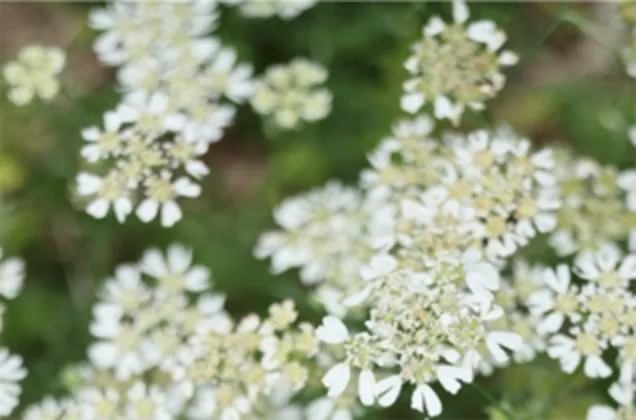
Captured Image

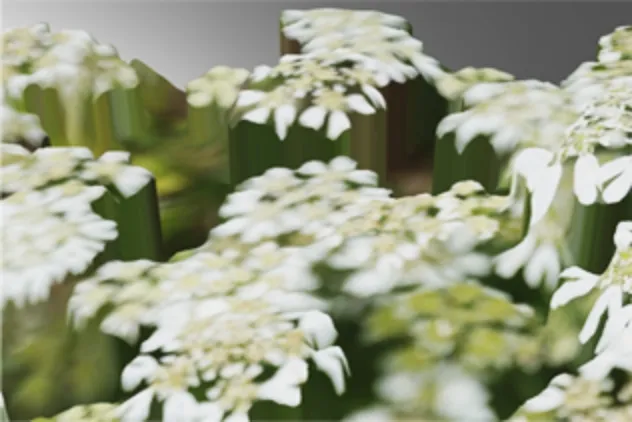
3D Model
Many blind spots

Captured Image
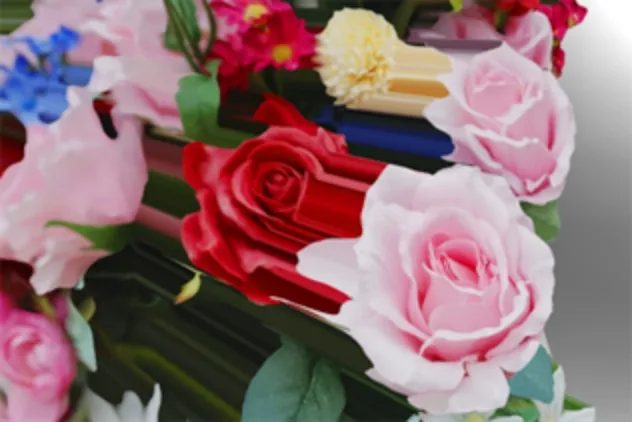
3D Model
Slender shapes
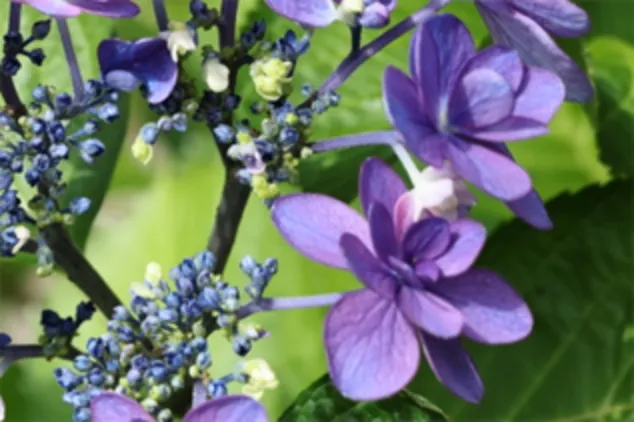
Captured Image
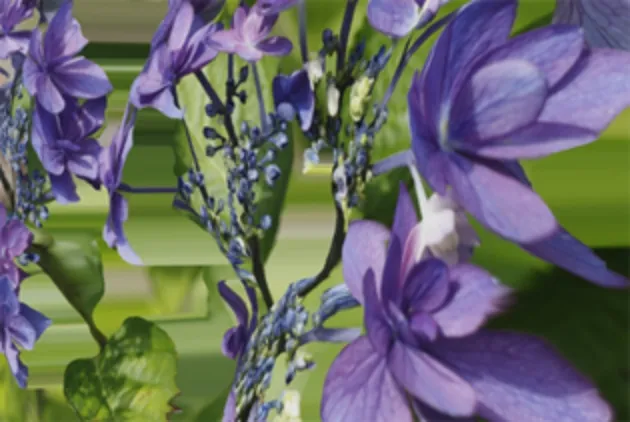
3D Model
Strong reflections
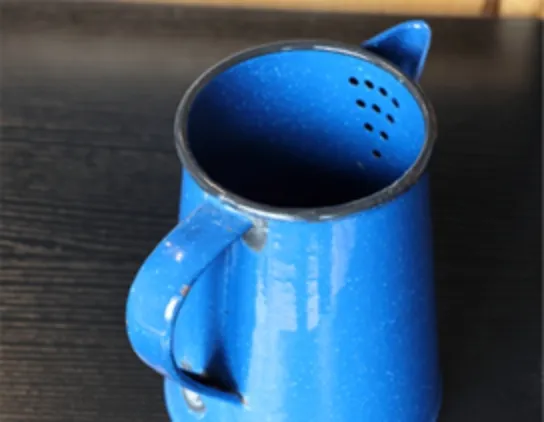
Captured Image
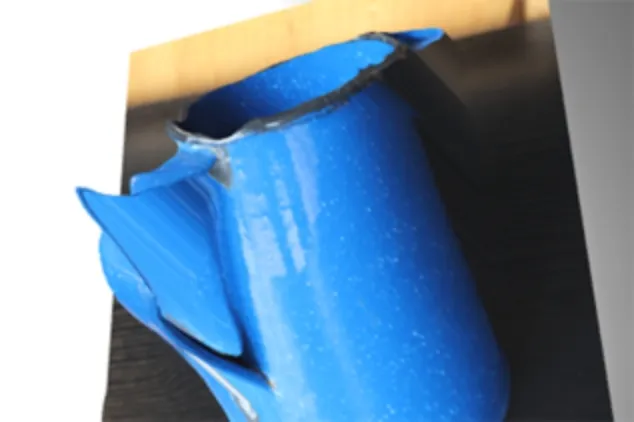
3D Model
Watch the Video:
Shooting Tips
Watch the video for tips on aperture, ISO sensitivity, subject distance, composition, and more to improve 3D model accuracy.
| Version | 1.0.0 |
|---|---|
| Key features |
|
| Supported OS |
Windows 11 (64-bit), version 24H2 or later
*Available for Windows only. |
| Language | Japanese, English, French, Spanish, German, Italian, Chinese (Simplified), Russian, Korean, Turkish |
| Applicable Models |
EOS R5
EOS R5 Mark II (Firmware Ver.1.3.1 or higher) EOS R6 Mark II EOS R6 Mark III EOS R7 EOS R8 EOS R8 Mark II * EOS R10 *Model supporting JPEG with distance data |
|
RF24-70mm F2.8 L IS USM
RF24-50mm F4.5-6.3 IS STM RF24-105mm F4 L IS USM RF24-105mm F4-7.1 IS STM RF35mm F1.8 MACRO IS STM RF50mm F1.8 STM RF70-200mm F2.8 L IS USM RF70-200mm F4 L IS USM RF85mm F2 MACRO IS STM RF100mm F2.8 L MACRO IS USM RF-S18-45mm F4.5-6.3 IS STM RF-S18-150mm F3.5-6.3 IS STM |
|
| Recommended System Configuration |
CPU:
Intel Core i Series processor (Intel Core i7 or higher recommended) RAM: 8 GB minimum, 16 GB or more recommended Storage Space: 2 GB or more available disk space Display Resolution: 1024 × 768 pixels or higher |
| Sample files | DP3d_Sample.zip (283MB) |
